It is the digital equivalent of having a door slammed right in your face.
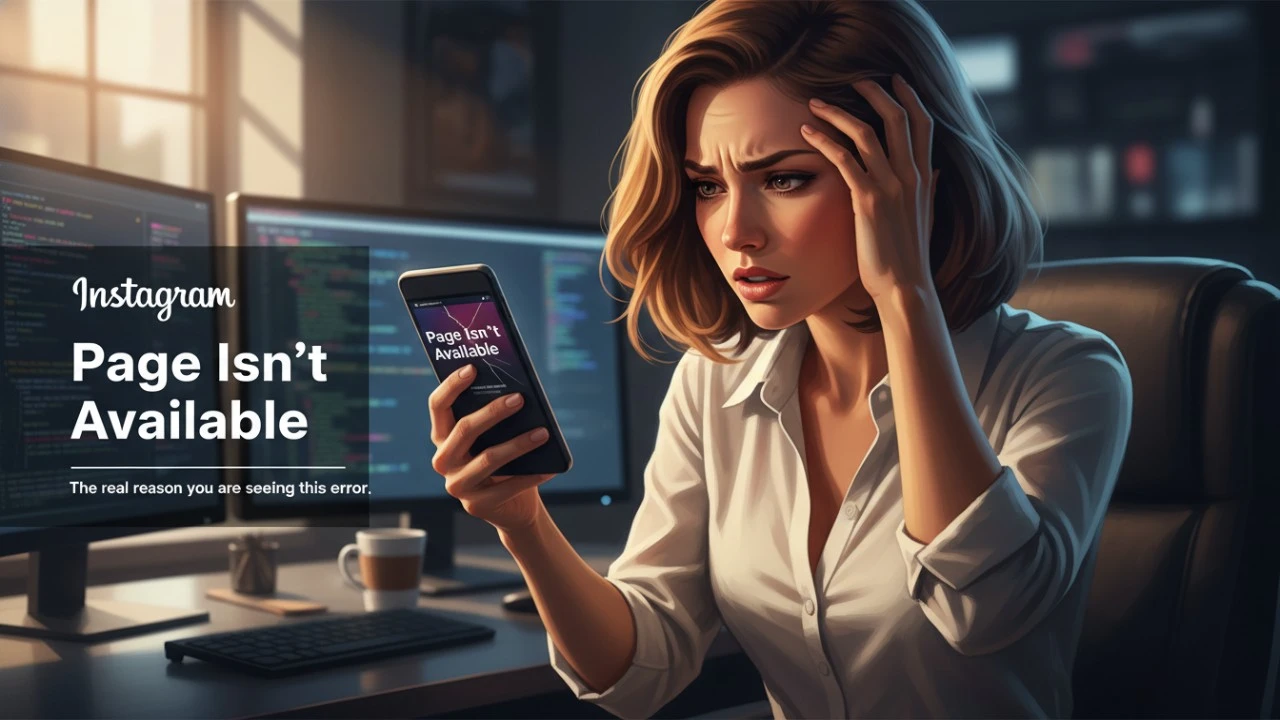
You tap a link someone sent you in a group chat, or you click through a profile from your explore page, and instead of seeing the photo, your screen goes completely blank. A massive, unhelpful line of text sits in the middle: “Sorry, this page isn’t available. The link you followed may be broken, or the page may have been removed.”
It is incredibly frustrating because the app refuses to give you any actual context. Did the person delete the post? Is your internet connection dropping? Did they block you?
Before you start aggressively force closing the app or restarting your phone, you need to isolate the problem. This specific error screen is a catch all message that Instagram uses for a half dozen completely different issues. Here is exactly what is going wrong behind the scenes, and the exact steps you need to take to fix the connection and see the content.
The Broken Link (The Marketing Nightmare)
More often than not, the problem is not a malicious block or a banned account. It is just a sloppy copy and paste job.
Let’s say you are running a massive promotional campaign for a clothing brand like RED RIGHT. You grab the URL of your latest streetwear drop, paste it into an email newsletter, and blast it out to your customer base. If your email software accidentally cuts off the last character of that Instagram URL, or adds a stray period at the end of the link, every single person who clicks it will hit the “Page Isn’t Available” screen.
Instagram URLs are exact. If even one letter in that random string of characters is wrong, the servers cannot route you to the image.
The Fix: If someone texted or emailed you the link, do not click it directly. Copy the text of the link, paste it into your browser’s address bar, and manually check to make sure there are no weird spaces, brackets, or punctuation marks glued to the end of it.
The Hard Truth: You Have Been Blocked
Nobody likes to hear this, but we have to address it. If you are trying to view a specific person’s profile and you are constantly hitting this error screen, there is a very high probability that they have blocked your account.
When a user blocks you on Instagram, the platform does not send you a notification. They just quietly wipe that person’s digital existence from your specific view of the app. If you try to force your way to their profile using a direct web link, Instagram throws up the “Page Isn’t Available” error to maintain the blocker’s privacy.
The Fix (How to Verify): You need to step outside your own account to test this. Open a private or Incognito window in your desktop web browser. Do not log into Instagram. Type instagram.com/[their username] directly into the URL bar.
If the page loads perfectly in the Incognito window, but shows the error screen when you are logged into your mobile app, you have your answer. You are blocked.
Geoblocking and Age Restrictions
Digital privacy laws have radically shifted how social media platforms serve content, especially with aggressive new data regulations sweeping across North America, Europe, and Oceania.
Because of these shifting legal frameworks, many creator and business accounts now utilize strict age gates and geographic blocks. If an alcohol brand in London restricts their page to users over the age of 18, and you are not logged into an account that explicitly verifies your age, Instagram will not even let you see the profile grid. It will just throw the generic “Not Available” error.
Similarly, some accounts block entirely specific countries due to licensing agreements or local media laws.
The Fix: Make sure you are actually logged into the app. A massive amount of content on modern Instagram is completely hidden from anonymous, non logged in web browsers.
The Account is Deactivated (Or Nuked)
Sometimes, the error is genuinely exactly what it says on the tin: the page simply does not exist anymore.
People deactivate their accounts all the time to take social media detoxes. When an account is temporarily deactivated, every single link to their past posts, reels, and profile page instantly breaks and displays this error.
Alternatively, the account might have been permanently banned. If an influencer or a meme page gets hit with a wave of copyright strikes or violates the community guidelines, the moderation bots will nuke the account from orbit. One minute the link works, and five minutes later, it points to a dead end.
The Fix: There is nothing you can do on your end. You simply have to wait and see if the user reactivates their account.
The Cache Glitch
If you know the link is perfectly formatted, you know you aren’t blocked, and you know the account is active, your phone is likely lying to you.
Instagram caches an absurd amount of data locally on your device to make the app load faster. Sometimes, that local cache gets corrupted. Your app thinks a page is missing, so it throws the error without actually pinging the live servers to check.
The Fix: * iPhone Users: You cannot clear the cache directly. You have to delete the Instagram app entirely from your home screen, go to the App Store, and reinstall a fresh version.
-
Android Users: Open your phone’s Settings, go to Apps, find Instagram, tap Storage, and hit Clear Cache.
Force closing the app and clearing out the junk data forces your phone to establish a brand new connection with the server, which usually completely bypasses the error screen.