We live in an era where data breaches are as common as rainy days. You wake up, check the news, and see that another major airline, health insurer, or streaming service has leaked 50 million passwords. In the US, it might be a credit bureau; in Australia, it brings back memories of the Medibank fallout; in Europe, it’s a constant battle with GDPR compliance notifications flooding your inbox.
The reality of 2026 is simple: Passwords are dead. They aren’t just “weak” they are structurally broken. If you use the same password for Netflix that you use for your online banking, you are one database leak away from a drained savings account. Hackers don’t “guess” your password anymore. They buy it in bulk from the dark web and use bots to try it on every major website simultaneously. This is called “Credential Stuffing,” and it is responsible for the vast majority of account takeovers today.
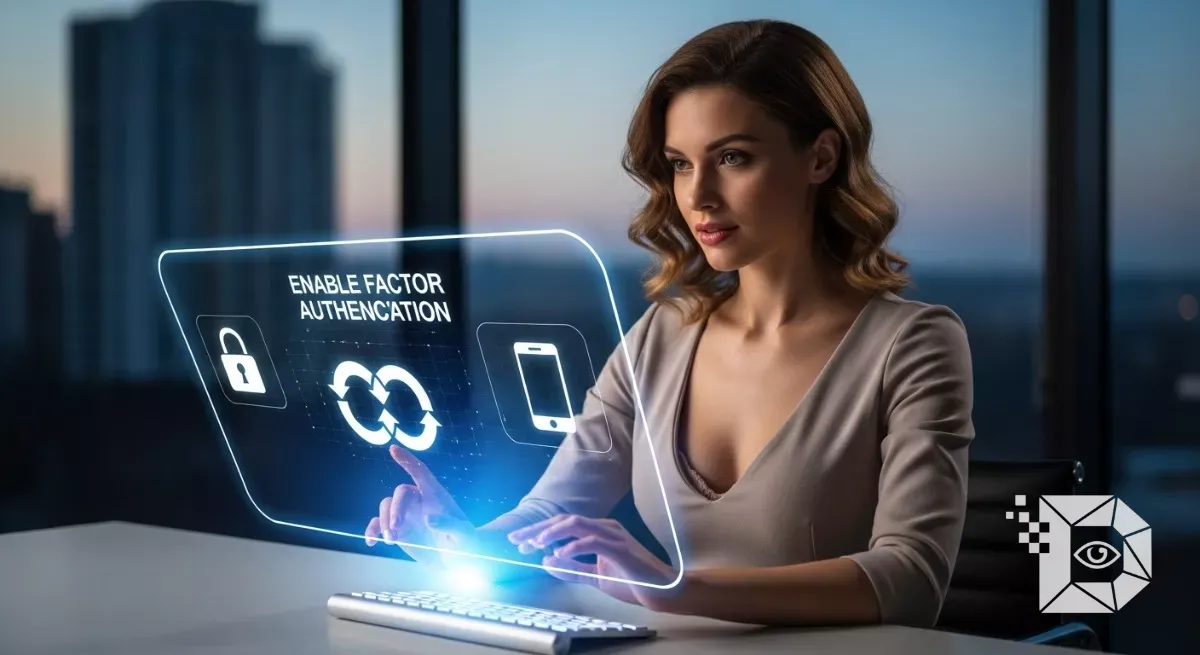
So, how do you stop a hacker who already has your password? You change the lock. You enable Two Factor Authentication (2FA).
If you have been putting this off because it feels like a hassle, I get it. Nobody wants to type a six digit code every time they log in. But that six digit code is the only thing standing between you and digital identity theft. Here is the complete, non technical guide to locking down your life, understanding why SMS codes are actually dangerous, and why “Passkeys” might soon save us all.
The Hierarchy of Security: Not All 2FA Is Created Equal
Before we start clicking buttons in your settings menu, you need to understand that there are three “levels” of 2FA. Some are good, some are great, and some are risky.
Level 1: SMS Codes (The “Better Than Nothing” Option) This is where a website texts a code to your phone number.
-
Pros: It’s easy. Everyone has a phone number.
-
Cons: It is vulnerable to SIM Swapping. This is a massive issue in the US, UK, and Australia right now. A hacker calls your mobile carrier (Verizon, Vodafone, Telstra, etc.), pretends to be you, and convinces the customer service agent to port your phone number to a new SIM card they control. Once they have your number, they get your 2FA texts. If you have a choice, avoid SMS 2FA. Only use it if it’s the only option available.
Level 2: Authenticator Apps (The “Sweet Spot”) This is the industry standard. You install an app like Google Authenticator, Microsoft Authenticator, or Authy on your phone. The app generates a new code every 30 seconds, locally on your device.
-
Pros: The codes never touch the mobile network, so SIM swappers can’t steal them.
-
Cons: If you lose your phone and didn’t back it up, you are locked out (more on this later).
Level 3: Hardware Keys (The “Fort Knox” Option) This is a physical USB stick (like a YubiKey) that lives on your keychain. To log in, you plug it into your laptop or tap it against your phone.
-
Pros: It is un hackable. Even if you give a hacker your password and the code, they can’t log in because they don’t have the physical key.
-
Cons: It costs money ($50+) and you have to carry it with you.
The “Passkey” Revolution (The Future)
If you are in the Apple or Google ecosystem, you have likely seen prompts for “Passkeys”. This is technically the evolution of 2FA. Instead of a password and a code, your phone uses FaceID or TouchID to create a cryptographic handshake with the website. It is phishing proof and faster than typing codes. If a site offers Passkeys (like Google, Amazon, or PayPal), use them. It is the gold standard for 2026.
Step by Step: How to Lock Down Your Digital Life
You don’t need to do this for every single account (nobody cares if your obscure forum account gets hacked). Focus on the “Big Three”: Email, Finance, and Socials.
1. Securing Your Email (The Master Key)
Your email is the most important account you own. If a hacker gets into your Gmail or Outlook, they can use the “Forgot Password” button to reset every other account you have.
For Google/Gmail Users:
-
Go to
myaccount.google.com. -
Click Security on the left sidebar.
-
Scroll to “How you sign in to Google” and select 2 Step Verification.
-
Hit “Turn on 2 Step Verification”.
-
It will ask you to add a backup method (usually a phone number).
-
Crucial Step: Once it is on, scroll down to “Authenticator App” and set that up. This stops you from relying on risky SMS texts.
For Microsoft/Outlook Users:
-
Go to
account.microsoft.comand log in. -
Click Security > Advanced Security Options.
-
Under “Additional Security,” verify that Two step verification is ON.
-
Download the Microsoft Authenticator app for the smoothest experience (it sends a “Yes/No” prompt to your phone instead of making you type codes).
2. Securing Your Money (Banks & PayPal)
Banks in Europe (under PSD2 regulations) and major banks in the US/Australia already force you to use 2FA. However, many still default to SMS.
-
The Upgrade: Log into your banking portal and check “Security Settings.” See if they allow you to use a Software Token (their own app) or a Hardware Key instead of SMS.
-
PayPal: Go to Settings (Gear Icon) > Security > 2 step verification. Change it from “Text me” to “Use an authenticator app.” This is vital because PayPal accounts are high value targets for drainers.
3. Securing Your Reputation (Social Media)
Hackers love stealing Instagram and Facebook accounts to hawk crypto scams to your friends.
For Facebook:
-
Menu > Settings & Privacy > Settings.
-
Accounts Center (the Meta hub) > Password and Security.
-
Two factor authentication > Select your account.
-
Choose “Authentication App”.
-
Scan the QR code with your app of choice.
For Instagram:
-
Profile > Menu (Three Lines) > Settings.
-
Accounts Center > Password and Security > Two factor authentication.
-
Tip: While you are there, check “Where you’re logged in” to make sure nobody from Russia or Brazil is currently sitting in your account.
The “Doomsday” Prep: Backup Codes
This is the step everyone skips, and it is the reason people cry on Reddit forums when they break their phone. When you set up 2FA, the site will usually show you a list of 10 Backup Codes. They look like random gibberish: 8839-1029, 9928-1120, etc.
PRINT THESE OUT. Or write them down in a notebook. Or save them in a secure PDF on a USB drive. If you drop your phone in the ocean, these codes are the only way to get back into your account.
-
Do not take a screenshot and leave it in your photo gallery (if you lose the phone, you lose the screenshot).
-
Do not email them to yourself (if you get locked out of email, you can’t access them). Keep them offline, in the real world.
What If I Lose My Phone?
If you use an Authenticator App, losing your phone can be a nightmare.
-
The Fix: Use an app that has Cloud Backups.
-
Google Authenticator now syncs to your Google Account (as of late 2024).
-
Authy and Bitwarden have built in multi device sync.
-
Microsoft Authenticator backs up to your personal Microsoft account. Ensure this “Cloud Backup” setting is turned ON inside the app settings today. If it is off, your tokens die with your device.
-
Yes, pulling out your phone to type a code is annoying. It adds five seconds to your login process. But think of it this way: That five second delay is the wall that stops a hacker in their tracks. They have your username. They have your password. But without that rotating code living on your device, they are powerless.
Start with your email today. Then do your bank tomorrow. Your future self the one who doesn’t have to spend three months fighting with support to get their identity back will thank you.