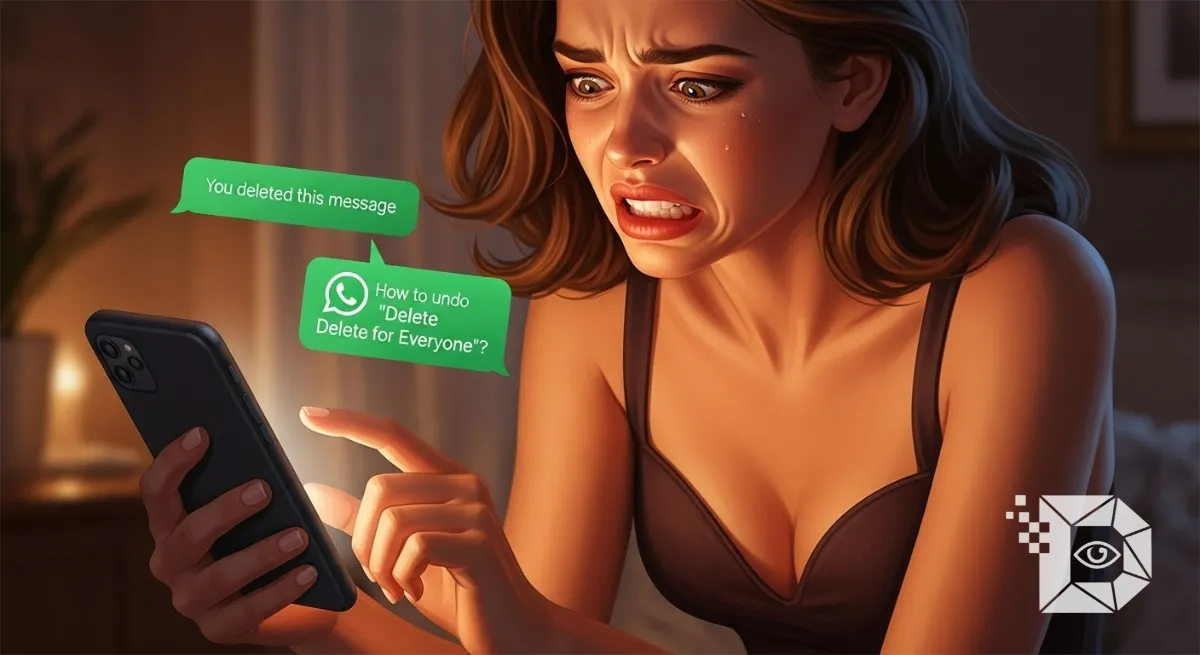
We’ve all been there: you delete a message on WhatsApp using “Delete for Everyone”, only to realize a second later that it was the wrong text. Maybe it was an important file, a business update, or a message meant for someone else. And now you’re left wondering Is there any way to undo Delete for Everyone on WhatsApp?
As WhatsApp continues to refine its messaging tools, this is one feature that users search for constantly. This article breaks down everything you need to know what’s possible, what’s not, and what alternatives exist. With clear explanations, expert-backed insights, and practical steps, here’s the ultimate guide to undoing message deletion on WhatsApp.
What Is “Delete for Everyone” and Why Users Want to Undo It
WhatsApp introduced the Delete for Everyone feature to help users retract messages that were sent by mistake. It’s widely used across personal chats, groups, and business conversations.
The reasons users want to undo it include:
-
Accidental deletion of important messages
-
Deleting the wrong message in a busy group chat
-
Removing a message and then realizing it contained essential media or information
-
Misplaced taps due to WhatsApp’s UI layout
However, despite its usefulness, the feature has limitations and that’s where confusion begins.
Can You Undo “Delete for Everyone” on WhatsApp?
Short Answer:
❌ No, WhatsApp currently does NOT offer an official “Undo Delete for Everyone” button.
Long Answer:
Once a message is deleted for everyone:
-
WhatsApp removes it from both your device and the recipient’s device.
-
WhatsApp servers do NOT retain a copy after deletion.
-
There is no reverse option inside the messaging interface.
But don’t worry depending on how and when the deletion happened, there are workarounds that can help you recover deleted content or prevent future mistakes.
Why WhatsApp Doesn’t Allow an Undo Option
According to app design experts and WhatsApp policy:
-
WhatsApp prioritizes privacy and data protection.
-
Once a user chooses to delete a message for everyone, the system executes it permanently.
-
Allowing undo could lead to exploitation or manipulation of message history in sensitive chats.
In short, WhatsApp is playing it safe but still leaves users wishing for more control.
Possible Ways to Recover a Message Deleted for Everyone
While you can’t technically “undo,” you can sometimes retrieve or recover deleted messages using indirect methods.
1. Restore From WhatsApp Backup (Works in Many Cases)
WhatsApp automatically backs up your chats daily, weekly, or monthly depending on your settings.
How to restore a deleted message from backup
-
Open WhatsApp Settings
-
Tap Chats > Chat backup
-
Check the last backup time
-
If the backup occurred before you deleted the message:
-
Uninstall WhatsApp
-
Reinstall WhatsApp
-
Select Restore
-
Limitations:
-
You will lose messages received after the last backup.
-
Requires cloud or local backup enabled.
2. Ask the Recipient (If They Downloaded Media Automatically)
Even after using Delete for Everyone:
-
Photos, videos, or documents may still remain on the recipient’s device if Media Auto-Download was ON.
A simple message like:
“Hey, I deleted something accidentally. Could you resend that file?”
…often solves the issue more easily than expected.
3. Use Notification Log (Android Only)
Some Android phones keep notification logs that store message previews.
How to check notification log
-
Long-press on your home screen
-
Choose Widgets
-
Add the Settings widget
-
Select Notification Log
-
Check older notifications containing WhatsApp messages
Note:
This works only if:
-
The message was visible in notifications
-
Your phone did not clear logs
-
You didn’t open WhatsApp before deletion
4. Third-Party Tools (Use With Caution)
Some apps claim to recover deleted WhatsApp messages by reading notifications.
BUT:
-
Many are unsafe
-
Some violate WhatsApp terms
-
They may compromise privacy
Use them only if necessary and always stick to trusted, verified tools.
How WhatsApp’s “Accidental Delete” Feature Helps
WhatsApp launched a feature called Accidental Delete, which gives users 5 seconds to reverse a different mistake selecting “Delete for Me” instead of “Delete for Everyone.”
❗ Important:
This feature does NOT undo Delete for Everyone.
It only helps when you mistakenly delete a message for yourself instead of for everyone.
Still, it’s a step in the right direction.
Prevent Accidental Deletions in the Future
Here are smart tips to avoid deleting the wrong message again:
1. Double-Check Before Deleting
Pause for one second and confirm you’re selecting the correct message.
2. Use Starred Messages
If something is important:
-
Tap and hold
-
Mark as Star
This keeps essential messages safe.
3. Increase Cloud Backup Frequency
Set WhatsApp backup to Daily for maximum protection.
4. Avoid Deleting When Multitasking
Most deletion mistakes happen when switching apps, driving, or rushing.
FAQs
1. Can WhatsApp bring back messages deleted for everyone?
No. Once deleted, the message cannot be restored via WhatsApp’s servers.
2. Can someone else undo my Delete for Everyone?
No. No user or admin can undo it.
3. Does WhatsApp keep a copy of deleted messages?
No, WhatsApp does not store deleted messages on servers.
4. Can I recover deleted photos or videos?
Yes, if the recipient downloaded them before deletion.
5. Will WhatsApp introduce an undo feature in future updates?
Possibly. User demand is high, but no official announcement has been made.
Conclusion
Undoing “Delete for Everyone” on WhatsApp isn’t currently possible but with backups, notification logs, and simple recovery methods, you may still retrieve important messages. As WhatsApp evolves, users continue to hope for a true “Undo” button in future updates.
If this guide helped you, share it with others, drop a comment, or bookmark it for later. Your support encourages more researched, helpful tech content like this.