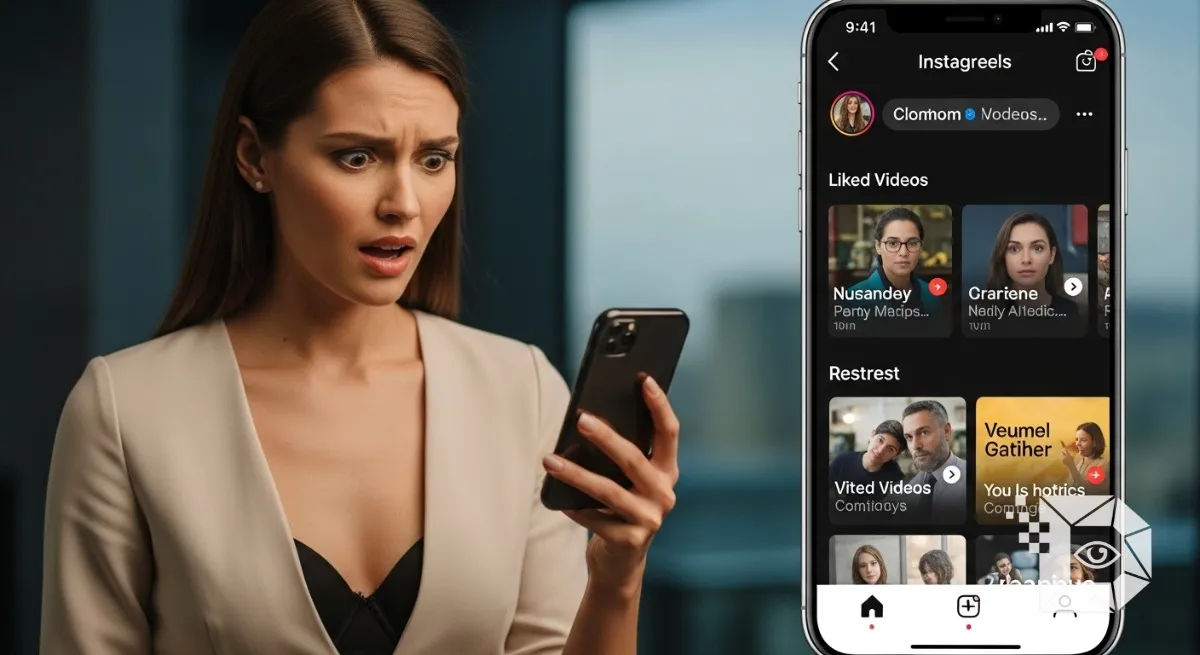
We have all been there. It is 11:30 PM. You are lying in bed, doom scrolling through Instagram Reels. You watch a video of a guy making the perfect smash burger. Or a travel hack for cheap flights to Italy. Or a dog doing a backflip. You double tap the screen to give it a heart. Then, disaster strikes. Your thumb slips. You accidentally hit the “Home” icon or refresh the feed. The page reloads. The smash burger is gone. The dog is gone. You are staring at a completely new video of someone dancing to a song you hate.
Panic sets in. You need that burger recipe. You liked it, so surely there is a simple list of “Things I Liked,” right? Yes. But if you haven’t looked for it in a while, you might notice that it isn’t where it used to be. Instagram (and its head, Adam Mosseri) loves to play a game called “Let’s Move The Settings Menu Every Six Months Just to Confuse Everyone.”
For years, your Liked Posts were hidden under Account > Settings. Then they moved to Privacy. Now? They have been banished to a completely new command center called “Your Activity.” If you are tired of clicking through random menus trying to find that one video from three weeks ago, here is the definitive map to the new Instagram layout.
1. The New Location: “Your Activity” Center
First, stop looking in “Settings.” Instagram has reorganized its entire backend to group all user interactions likes, comments, tags, and sticker responses into one hub. This is actually a good thing for privacy (it makes it easier to bulk delete embarrassing comments from 2016), but it’s annoying if you don’t know it exists.
The Guide iOS & Android:
-
Open the Instagram app and go to your Profile Tab (bottom right, your face icon).
-
Look at the top right corner. You see the Three Lines (the Hamburger Menu). Tap it.
-
Do not tap “Settings and privacy.” (This is the trap).
-
Look for the icon that looks like a clock or a graph. It is labeled “Your Activity.”
-
Tap that.
-
Inside, you will see a list of interactions. Tap on “Likes.”
Boom. There it is. A grid of every single Reel, Photo, and Carousel you have double tapped since the beginning of time (or at least since you created the account). The most recent ones that smash burger video you just lost will be right at the top left.
2. The “Filter” Secret (Power User Trick)
If you are a heavy user, your “Likes” folder is probably a mess. It’s a chaotic mix of memes, news, friends’ baby photos, and cooking videos. Finding one specific Reel in that haystack is painful.
Instagram added a Filter button at the top right of the Likes screen (it looks like two sliders). Most people ignore this, but it is powerful.
-
Sort by Date: You can switch from “Newest to Oldest” to “Oldest to Newest” (if you want to cringe at what you liked in 2014).
-
Sort by Author: If you know the video was by Gordon Ramsay but you can’t find it, you can filter specifically for his account.
-
Sort by Time Range: This is the best one. If you know you saw the video “last week,” you can set the Start Date and End Date to show only likes from that week. This cuts the clutter by 99%.
3. The “Save” vs. “Like” Debate
While we are here, we need to have a serious conversation about your scrolling habits. Liking is for the Creator. Saving is for You.
When you “Like” a Reel, you are telling the Instagram Algorithm: “Show me more stuff like this.” You are paying the creator with engagement. But “Liking” is a terrible bookmarking system. It gets buried instantly.
If you actually want to reference a video later (like a recipe or a workout routine), stop Liking it. Save it. The Bookmark Icon (usually hidden under the three dots or on the right side of the Reel interface) saves the video to a private “Collection.”
-
Why it’s better: You can organize Collections. You can make a folder called “Dinner Ideas” and a folder called “Gym.”
-
The Workflow: I have a rule. If I enjoy it, I Like it. If I need to use it, I Save it. Checking your “Saved” folder is much faster (
Profile > Hamburger Menu > Saved) and usually much cleaner than the endless stream of Likes.
4. How to “Mass Unlike” (The Algorithm Reset)
Have you noticed your Reels feed getting weird? Maybe you liked one video of a tractor, and now your entire feed is just farming equipment. This happens because you “polluted” your Like history. The algorithm thinks you are now a farmer.
The “Your Activity” hub allows you to fix this.
-
Go back to Your Activity > Likes.
-
Tap “Select” in the top right corner.
-
Scroll down and tap all the “Tractor Videos” (or whatever topic you want to banish).
-
Tap “Unlike” at the bottom. You can unlike 50 videos at once. This sends a massive signal to the algorithm: “I am no longer interested in this.” It is the fastest way to reset your recommendations without creating a new account.
5. Can Others See What I Like?
This is a common anxiety, specifically for users in the US and Europe where digital privacy is a hot topic. In the old days of Instagram (the “Following” tab era), your friends could see a ticker of exactly what you were liking in real time. “Akshay liked a photo of…” That feature is dead. Your Likes are private ish.
-
The Public Part: If your friend goes to a specific Reel that you liked, they will see “Liked by [YourName] and others” under the video.
-
The Private Part: There is no way for a friend to go to your profile and see a list of everything you liked. The “Your Activity” tab is visible only to you. So, you can like your guilty pleasure videos in peace. Unless your friend stumbles upon the exact same video, your secret is safe.
6. Troubleshooting: “My Likes Disappeared”
Sometimes, you go to the Likes folder and it’s empty, or it stops at last month. This is a classic Instagram “Cache” glitch. If you live in Australia or the UK, you might experience this more often due to app update rollouts hitting your regions at different times.
The Fixes:
-
Pull to Refresh: Go to the Likes grid and drag the screen down aggressively. Force it to reload.
-
Log Out/In: It sounds basic, but it clears the session data.
-
Check the “Reels” Tab: sometimes, Liked Reels don’t show up in the main “All Likes” grid immediately. Instagram sometimes separates them. Look for a drop down menu or a separate tab within the Activity center.
-
The “Removed” Content: If you liked a video and it vanished from your list, the creator might have deleted it, or Instagram took it down for copyright/guidelines. If the source is gone, the Like is gone.
The interface will change again. I guarantee it. Next year, Adam Mosseri will probably move the “Likes” button inside the “Settings” menu inside a “Privacy” folder inside a locked safe. But the logic remains the same. Instagram wants to track your activity. They have to let you see it. So next time you lose that perfect burger recipe, don’t panic. Head to the Hamburger menu. Hit “Your Activity.” And maybe start using that “Save” button a little more often.