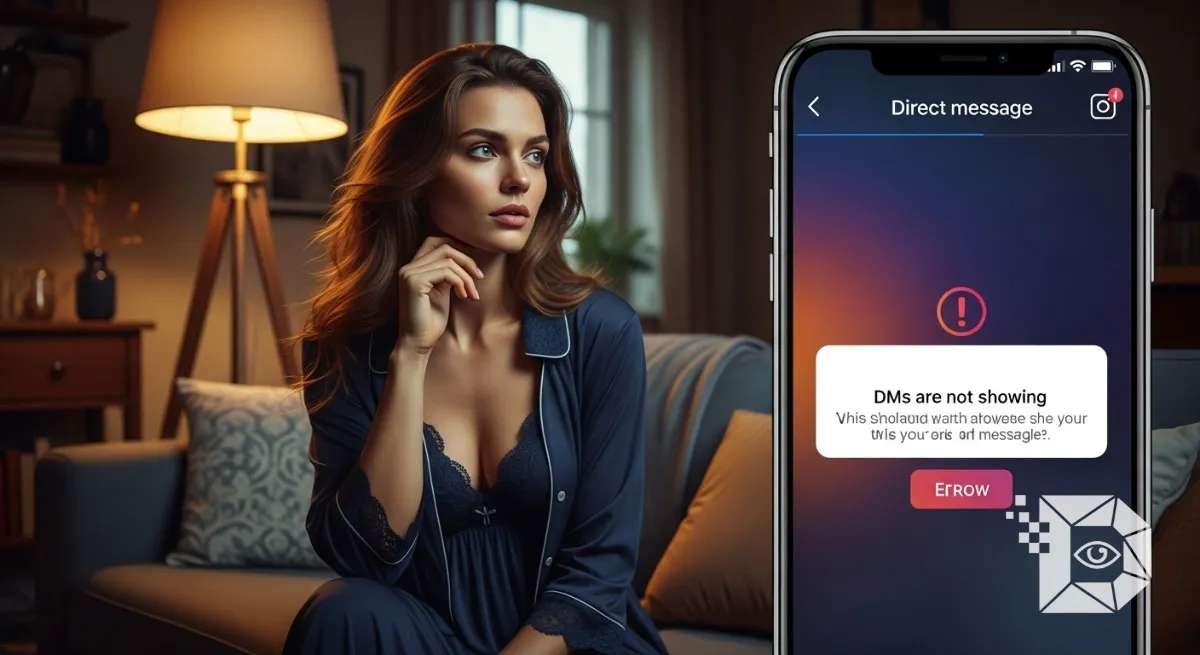
When Instagram DMs stop working messages not showing, disappearing, failing to load, or refusing to refresh it feels like hitting a digital roadblock in the middle of a conversation. Millions rely on Instagram’s messaging system daily, whether for personal chats, business inquiries, or creator–follower communication. So when Instagram DMs suddenly stop showing, the issue becomes more than an inconvenience it disrupts your entire social flow.
In this guide, backed by deep research and real user cases, we break down exactly why Instagram DMs aren’t showing and how to fix it instantly, using practical methods that work in 2024–2025.
What Causes Instagram DMs to Not Show Up?
Instagram DM issues usually fall into a few categories app glitches, connectivity problems, account restrictions, or server-side errors. Here’s what typically triggers the problem:
1. Instagram Server Outage
Sometimes, the fault isn’t yours. Global outages or regional server downtimes can temporarily break DM features. When this happens, messages fail to load or vanish.
2. App Bugs or Corrupted Cache
A glitchy update or buggy cache files can block DMs from appearing or syncing with Instagram’s servers.
3. Poor Internet Connection
Low bandwidth or unstable Wi-Fi can stop messages from refreshing, especially media-heavy messages.
4. Account Restrictions or Violations
If Instagram detects unusual activity, they may temporarily limit messaging functions.
5. You’re Using an Outdated App Version
Old versions of Instagram sometimes struggle to sync messages with newer server updates.
6. Cross-Device Sync Errors
Logging in from multiple devices can create temporary DM syncing delays.
How to Fix Instagram DM Not Showing Step-by-Step
Below are the most effective troubleshooting steps proven to fix Instagram DM issues quickly.
1. Check If Instagram Is Down
Before trying any complicated fixes, verify whether it’s a global issue.
How to check:
-
Visit Downdetector or IsItDownRightNow
-
Search “Instagram”
-
Look for spikes in outage reports
If it’s down, the only solution is to wait until Instagram restores services.
2. Restart the App and Your Phone
It sounds simple, but restarting clears temporary memory glitches that block DM loading.
-
Close Instagram completely (not just minimize)
-
Reopen the app
-
If still not fixed, restart your phone
This alone fixes DM visibility issues for many users.
3. Clear Instagram Cache (Android)
Cache corruption is one of the biggest DM-related issues.
Steps:
-
Go to Settings
-
Tap Apps > Instagram
-
Select Storage
-
Tap Clear Cache
For iPhone users, you need to offload the app:
iPhone:
Settings → General → iPhone Storage → Instagram → Offload App
This removes corrupted files while keeping your account data safe.
4. Update Instagram to the Latest Version
Every update contains bug fixes including DM bugs.
-
Open Google Play Store or App Store
-
Search “Instagram”
-
Tap Update
Once updated, relaunch the app and check DMs again.
5. Log Out and Log Back In
This forces the app to refresh your messaging permissions and sync messages again.
-
Go to Profile > Menu > Settings > Log Out
-
Log back into your account
Many users report DMs appearing instantly after this step.
6. Check Your Internet Connection
Poor connectivity can prevent messages from loading.
Try:
-
Switching to mobile data
-
Restarting your Wi-Fi router
-
Toggling Airplane mode on/off
Even a brief refresh can restore DM functionality.
7. Disable VPN or Proxies
VPNs often cause login and DM syncing issues by confusing Instagram’s location-based systems.
Turn off your VPN and relaunch the app.
8. Verify Whether You’ve Been Restricted
If you engaged in rapid messaging or suspicious activity, Instagram may temporarily block your DM features.
Common triggers include:
-
Sending too many messages too fast
-
Sending duplicate texts
-
Messaging users who don’t follow you
-
Using third-party DM tools
If restricted, wait 24–48 hours for the limit to clear.
9. Try Using Instagram Web (Temporary Fix)
Sometimes the app fails, but the web version works fine.
Visit: www.instagram.com/direct/inbox
If messages show there, the issue is app-specific.
10. Reinstall Instagram Completely
If none of the above work, a fresh install often solves deeper app issues.
-
Uninstall Instagram
-
Restart your device
-
Reinstall from the App Store / Play Store
This gives you a clean app environment and removes corrupted data.
11. Check Message Requests
Sometimes the conversation is simply sitting in “Message Requests”.
Go to:
DMs → Requests → Hidden Requests
You may find missing messages there.
12. Contact Instagram Support (If All Else Fails)
For unresolved DM errors:
-
Go to Settings > Help > Report a Problem
-
Explain the issue clearly
-
Attach screenshots if possible
Response time varies from a few hours to a few days.
FAQs
Why are my Instagram messages not showing up?
Most commonly due to app bugs, poor internet, an outdated app, or a server outage.
Can someone restrict me on Instagram?
Yes. If restricted, you can send messages but they won’t appear in their main inbox.
Why did my DM suddenly disappear?
It may be deleted, unsent by the sender, moved to requests, or caused by app glitches.
Does Instagram limit DMs?
Yes. Sending too many messages quickly can trigger temporary bans lasting 24–48 hours.
Will reinstalling Instagram delete my chats?
No. Your chats are stored on Instagram’s servers, not your device.
Conclusion
Instagram DM issues are frustrating, especially when messages refuse to appear at all. But in most cases, the problem is temporary and fixable with simple steps like clearing cache, updating the app, checking internet stability, or reinstalling Instagram.
If you found this guide helpful, share it with friends, leave a comment, and help others fix their DM issues too.