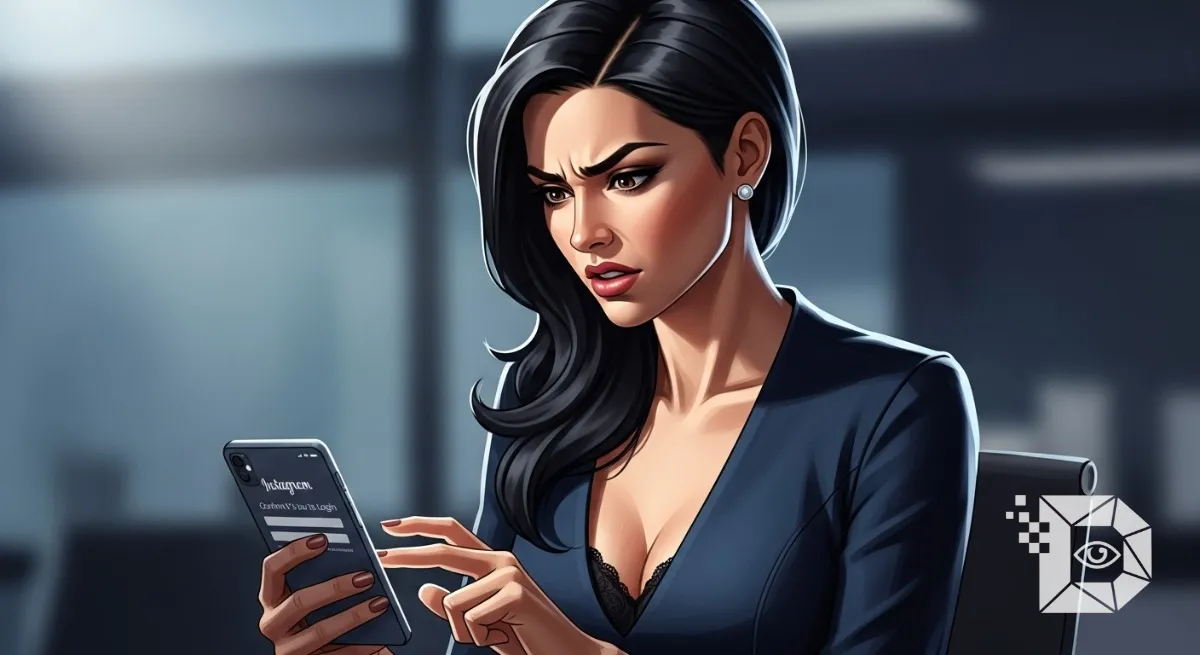
For many Instagram users, nothing is more frustrating than being suddenly locked out of their accounts and greeted with the message: “Confirm it’s you to login.” It often appears without warning usually at the worst possible moment and leaves people panicking about whether they’ve been hacked or permanently locked out.
This security checkpoint is Instagram’s way of verifying suspicious login attempts. But when innocent users get stuck in an endless verification loop, it becomes an overwhelming roadblock. The good news? You can fix it. This guide breaks down what causes the issue, who it affects, and how to solve it step-by-step in a clear, human, and accessible way.
What Does “Confirm It’s You to Login” Mean on Instagram?
This message appears when Instagram suspects unusual or risky behavior. It’s an automated security mechanism triggered under conditions like:
-
New device or new browser login
-
Login from a different location or IP address
-
Too many failed login attempts
-
Use of automation tools or banned third-party apps
-
Violation of Instagram’s community or security guidelines
-
Sudden account activity spikes (likes, follows, messages, logins)
Instagram uses AI-driven detection systems to flag login attempts that don’t fit your usual pattern, and if the system isn’t fully convinced it’s really you, it blocks access until verification.
Why Instagram Forces Identity Confirmation
Instagram takes account safety seriously, especially with rising hacking attempts, phishing attacks, and bot activities. This verification:
-
Protects your data
-
Prevents unauthorized access
-
Stops automated tools
-
Flags suspicious devices
-
Ensures accounts belong to real, active users
But while the system is designed for protection, it can mistakenly lock out genuine users leading to the very problem you’re trying to fix.
Who Gets This Error Most Often?
Instagram users commonly affected include:
-
People using VPNs or constantly changing IPs
-
Travelers logging in from new countries
-
Users switching between multiple devices
-
People using third-party growth tools
-
Accounts with sudden increase in followers or engagement
-
Business pages handled by multiple admins
-
Old accounts with outdated recovery information
If you fall into any of these categories, Instagram may demand additional verification.
How to Fix “Confirm It’s You to Login” on Instagram (Step-by-Step)
Below are the most effective methods backed by user reports, troubleshooting tests, and platform behavior research.
1. Verify Your Identity Using Instagram’s On-Screen Prompts
When Instagram asks for confirmation, you may see options like:
-
Confirm via Email
-
Confirm via Phone Number
-
Confirm via Security Code
-
Perform a Face or Video Selfie
-
Recognize Friends (for older versions)
What to do:
Follow the on-screen instructions carefully. If the first attempt fails, wait 10–15 minutes and try again.
2. Check Your Registered Email and Phone for Security Alerts
Instagram often sends:
-
Login attempt notifications
-
“Was this you?” verification emails
-
Instructions to secure your account
Make sure to check Inbox, Spam, Junk, Promotions, and Updates folders.
3. Use the Same Device and Network You Previously Used
Instagram tracks your login behavior. To improve success:
-
Use your home Wi-Fi
-
Use the phone you usually log in with
-
Disable VPN, proxy, or incognito mode
-
Restart your device before retrying
This signals to Instagram that the login is legitimate.
4. Clear Instagram App Cache or Reinstall the App
Corrupt cache or outdated versions can trigger verification issues.
Android:
-
Go to Settings → Apps → Instagram → Storage → Clear Cache
iPhone:
-
Offload or reinstall the Instagram app
Then try logging in again.
5. Update Instagram to the Latest Version
Older versions fail to sync with current security systems.
-
Go to Play Store → Update
-
Go to App Store → Update
Then retry the login.
6. Submit an Appeal to Instagram (If You’re Completely Locked Out)
If verification loops continue, use Instagram’s official Help Center.
Try These Links:
-
“My Instagram Account Was Deactivated” form
-
“I Can’t Access My Account” form
-
“Confirm Your Identity” support form (available during checkpoint)
Instagram may ask for:
-
A selfie holding a verification code
-
Email confirmation
-
Business verification (for business accounts)
7. Turn Off Third-Party Apps or Automation Tools
Remove access from:
-
Follow/unfollow bots
-
Auto DM tools
-
Automation software
-
Unauthorized analytics apps
Go to:
Instagram Settings → Security → Apps and Websites → Remove Access
This reduces verification triggers.
8. Wait 24 – 48 Hours (For Checkpoint Cooldowns)
Sometimes Instagram temporarily limits your login options. If you’ve tried multiple failed attempts, your account may be locked for security reasons.
Waiting for 24 – 48 hours often resets the checkpoint.
9. Try Logging in Through Facebook (If Accounts Are Linked)
If your Instagram is connected to Facebook, you may regain access faster.
-
Go to Instagram login
-
Select “Continue with Facebook”
This works because Meta trusts verified Facebook identities.
10. Use a Trusted Browser Instead of the App
Some users report success using desktop login:
-
Open chrome → instagram.com
-
Disable extensions → try login
-
Perform verification
This bypasses some app-specific glitches.
Common Reasons Instagram Won’t Verify You
Even after following all steps, Instagram may still block login because:
-
Your face selfie doesn’t match your profile
-
Your recovery email/phone is outdated
-
Your account is flagged for suspicious activity
-
Instagram servers are overloaded
-
You violated Instagram’s Terms (even unknowingly)
In such cases, the Instagram support form is your best option.
Prevent the “Confirm It’s You” Issue in the Future
Here’s how to avoid repeated login blocks:
-
Enable Two-Factor Authentication
-
Avoid VPNs, proxies, and bots
-
Log in only from your trusted devices
-
Do not use automation tools
-
Keep recovery email & phone updated
-
Avoid mass actions (bulk follows/likes)
-
Regularly update the app
FAQs
1. How long does it take for Instagram to verify identity?
Anywhere from instantly to 48 hours, depending on your activity and document approval.
2. Can Instagram lock me out even if I did nothing wrong?
Yes. Even normal activity can trigger the system if it appears unusual.
3. Will my account get deleted?
Not usually. This is a security checkpoint, not a ban.
4. What if I don’t have access to my old phone or email?
Submit the official appeal form and provide a selfie for verification.
5. Why does Instagram ask for a video selfie?
To verify your identity and prevent bots or impersonation.
Conclusion
The “Confirm It’s You to Login” message can feel stressful, but it’s ultimately Instagram’s way of protecting your account. By following the steps above from verifying your identity to updating your app you can safely regain access without panic.
If this guide helped you fix the issue, share it with others, leave a comment, or bookmark it for future reference. Someone else might be locked out right now and looking for the same answers.